Shipping Zones by Drawing Premium 3.4 lets an AI assistant set up your WooCommerce delivery zones. You describe the area and the prices, and the assistant draws the zone, adds the shipping method and tests real addresses. It shows you a preview before anything is saved.
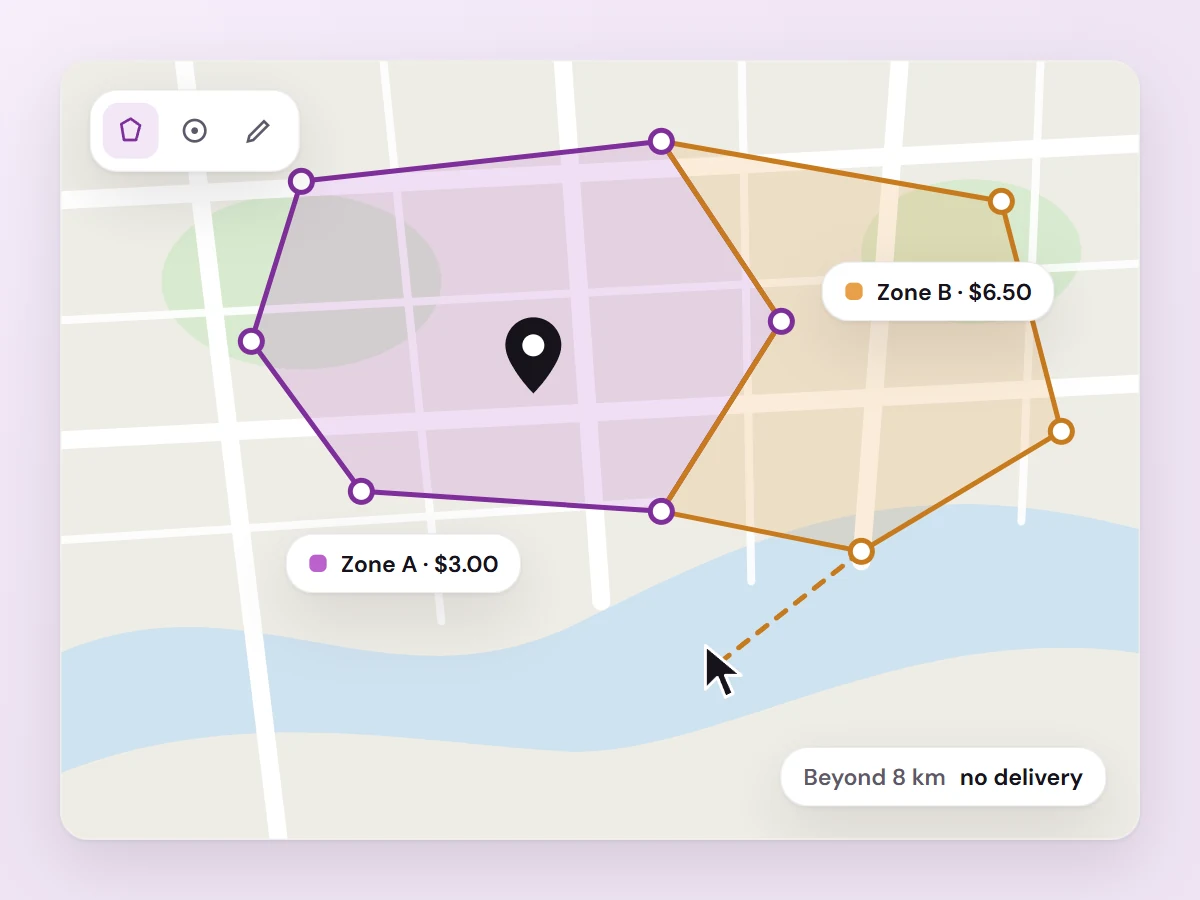
Just ask
Connect Claude, Cursor, VS Code or another MCP client to your shop and write what you want, for example:
“Create a delivery zone with a 5 km radius around the store, with free delivery from 500 and 49 below that.”
The assistant creates the zone and the shipping method, checks a few addresses and shows what would change. You confirm, and it saves.
What the assistant can do
- Draw delivery zones and add shipping origins
- Combine zones, for example “within 5 km of the store but not in the city centre”
- Add and change Shipping Zones by Drawing shipping methods, and WooCommerce’s Flat rate, Free shipping and Local Pickup
- Test which shipping methods and rates a delivery address gets
- Explain your current setup in plain language
- Find out why customers see no shipping options, from Google’s error responses and the plugin’s logs, without ever seeing your API keys
- Import zones from a KML file, for example from Google My Maps
Safe by default
- Off until you turn it on in the plugin’s Advanced settings. Turning it off removes all AI functions at once.
- Preview first. Every change is a dry run until you confirm it.
- Drafts. New zones and shipping methods are saved as drafts or disabled unless you ask for them to be published.
- Your live setup stays as it is. The methods your customers use today are only changed when you ask for exactly that.
- Logged. Every change is written to WooCommerce → Status → Logs.
- Normal WordPress permissions. The assistant acts as a WordPress user and can only do what that user is allowed to do.
What you need
- Shipping Zones by Drawing Premium 3.4 or newer
- WordPress 6.9 or newer and WooCommerce 8.0 or newer
- The free MCP Adapter plugin
- An AI client that supports MCP, for example Claude Desktop, Cursor or VS Code
Connecting takes a few minutes: create an Application Password and add your shop to the AI client. The guide walks you through it: How to connect an AI assistant. On older WordPress versions the plugin works as before, without the AI functions.
Also new: automatic updates
Since 3.4, Shipping Zones by Drawing Premium updates like any other plugin. Enter your licence key under WooCommerce → Settings → Shipping Zones by Drawing Premium → License. You find the key under My account.
Questions
Does the AI assistant cost extra?
No. It is included in Shipping Zones by Drawing Premium. You use your own AI client.
Is it in the free version?
No, it is a premium feature. With the free Shipping Zones by Drawing on WordPress.org you draw the zones by hand.
Do I need drawn zones at all?
Read Drawn delivery zones vs postcodes.