A wholesale buyer who knows what they want does not browse. They want to tick off forty products and get to the checkout. The WooCommerce shop page is built for the opposite: one product at a time. A bulk order form puts the products in one table, with a quantity field on every row.
What WooCommerce does, and what is missing
| Shop page | Order table | |
|---|---|---|
| Layout | A grid of product cards | One table, one product per row |
| Quantity | By default the button adds one item. Other quantities are set on the product page | A quantity field on every row |
| Variable products | The buyer opens the product and chooses the options | Each variation is a row of its own |
| Package size and price per unit | Not included | Columns for package size, unit and a calculated unit price |
| Order total | In the cart | Number of packages and the subtotal in the table footer |
| Checkout | The normal checkout | The same checkout |
WooCommerce has no order form of its own. Wholesale Order Table adds one, either in place of the shop page or on any page you choose. There is a live demo where you can fill in an order.
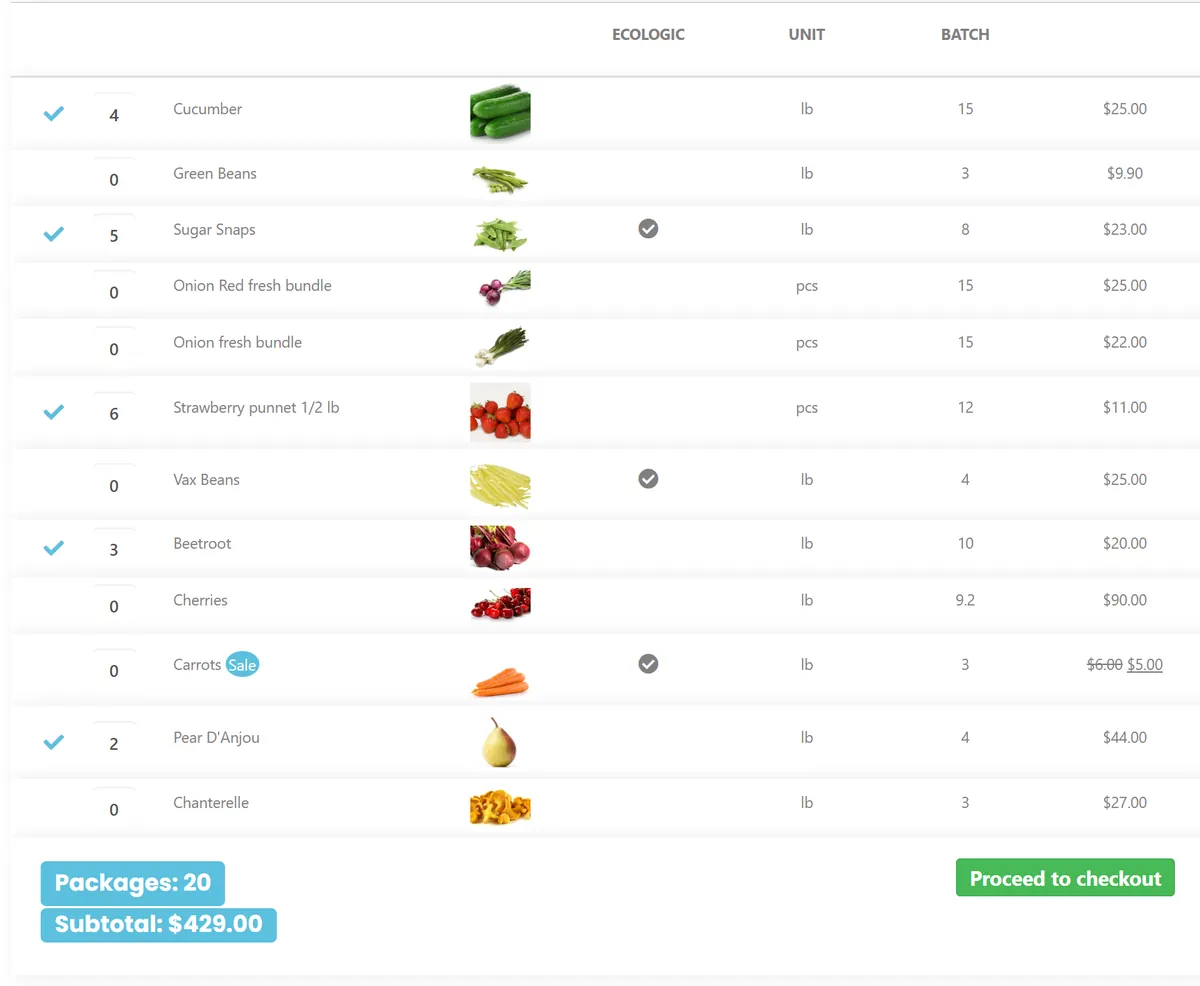
Who an order form fits
- Wholesalers and distributors whose customers order many products at a time, often by the package.
- Repeat orders: restaurants, shops and offices that order the same goods every week.
- Long price lists: spare parts, ingredients and supplies, where each product is a line in a list.
It fits less well where buyers choose by looking: fashion, gifts and other products that need large photos and a description to sell.
Set it up with the free version
- Install Wholesale Order Table from WordPress.org and open WooCommerce → Settings → Wholesale Order Table.
- Choose where the table is shown. Turn on Override shop page to show it instead of the shop page, or place the shortcode
[ordertable]on any page. - To group the products under their category titles, turn on Show products by category at shop page. The shop page then shows all products without paging.
- Under Table Column Settings, click Show/Hide Column Settings and tick the columns to show: quantity, image, title, package size, unit, unit price and price. Each column title can get a text of your own.
- For long lists, turn on the sticky Table header & footer, so the column titles and the subtotal stay in view.
- Open the table as a customer, type a few quantities and follow the footer. The button at the bottom goes to the checkout.
Show the price per unit
Wholesale goods are sold by the package, but buyers compare the price per piece, kilo or litre. The free version calculates it:
- Create a product attribute under Products → Attributes, for example Package size, and give each product a number as value, such as 12.
- In the plugin settings, choose it as Product attribute to use as “Package Size”. You can choose a second attribute as Product Unit, for example kg or pcs.
- Show the columns package size, unit and unit price.
The unit price is the product price divided by the package size. A box of 12 at $18 shows a unit price of $1.50.
Show different products on different pages
[ordertable]
All products, sorted by title.[ordertable categories="fruit, vegetables"]
Only these category slugs, in the order you write them.[ordertable tags="organic" limit="25" orderby="sku"]
Products with a tag, 25 per page, sorted by SKU.[ordertable show_categories="true" show_category_description="true"]
Products grouped under their category titles and descriptions.
Use one table per page. The other sort orders are date, ID, menu order, popularity, rating and random; see the documentation.
What Premium adds
- More columns: fifteen more column types, among them SKU, product tags, stock, dimensions, weight, tax class, package price, short description and amount in cart, plus a column for each product attribute.
- Your own layout: under Table Layout you drag the columns into order and can set their widths yourself.
- A search field above the table that filters the rows as the buyer types.
- A Clear Cart button and decimal quantities, for goods sold by weight or length.
Premium is a complete plugin of its own. Deactivate the free version before you activate it.
Good to know
- It is an order form, not a wholesale pricing plugin. It shows the price WooCommerce gives each product and has no customer roles, price lists or login requirement of its own.
- A quantity goes into the cart when the buyer leaves the field, or two seconds after they stop typing. There is no “add to cart” button to press on each row.
- The table follows minimum and maximum order quantities, including limits set by other plugins: the quantity is adjusted and the buyer sees the limit. A quantity above the stock level is lowered too, with a message if the stock level warning is turned on.
- Products that are out of stock show their stock status instead of a quantity field.
- It supports WooCommerce High-Performance Order Storage, and orders go through the normal WooCommerce cart and checkout.
Questions
Is there a free bulk order form for WooCommerce?
Yes. The free Wholesale Order Table has the order table on the shop page or by shortcode, seven columns, category grouping and the unit price.
Can buyers order variations in bulk?
Yes. Each variation is a row with its own quantity field. The title can show the variation attributes or the variation description after the product name.
Can only logged-in wholesale customers see the table?
Not through the plugin. It has no visibility rules of its own. Place the shortcode on a page and restrict that page with the membership or wholesale plugin you already use.
What does Premium cost?
Wholesale Order Table Premium costs from $49 a year for one site, with updates and support. The plugin keeps working if you do not renew.
Next: See Wholesale Order Table · Live demo · Documentation · Buy Premium, from $49 a year